
Guardian System
Guardian System
Guardian roles also determine encryption recipients. Secret and attachment contents are encrypted to the current-member Custodian and every enrolled Successor, plus the owner when owner escrow is enabled. Gatekeepers do not receive a key through that role. Approval controls server delivery of ciphertext; a Successor who obtains a copy addressed to them can decrypt it offline before approval. Membership, guardian, or escrow changes may require an eligible user to re-encrypt the asset. See the Security Model.
The Guardian System is a role-based access control mechanism that allows you to securely share assets with specific team members while maintaining fine-grained control over who can view and manage your sensitive information.
Overview
When you create an asset in Key Man Out, you automatically become its Custodian - the owner with full control. You can then assign other team members as Gatekeepers or Successors, each with different levels of access and responsibilities.
The Guardian System ensures that:
- Only authorized individuals can access sensitive asset information
- Access requires explicit approval workflows for disaster recovery scenarios
- All access attempts are logged and monitored
- Asset creators maintain control over their information
Guardian Roles Explained
Custodian
Who: The person who created the asset (automatically assigned)
Can Do:
- View the asset content and secret at any time without approval
- Add or remove Gatekeepers instantly without approval
- Add Successors instantly without approval
- Remove Successors (requires approval from other Successors if any exist)
- Approve or deny access requests from Successors
- Edit and delete the asset
- Transfer the Custodian role to another team member
Cannot Do:
- Remove themselves as Custodian without transferring the role
Use Case: You are the owner of credentials for a critical service and want to ensure your team can access them in an emergency, but only with proper safeguards.
Gatekeeper
Who: A trusted team member who acts as an additional security layer
Can Do:
- View basic asset information (name, website, instructions)
- Deny access requests during time-delay periods
- Receive notifications about access requests
Cannot Do:
- View the encrypted secret content
- Approve access requests
- Modify the asset or its guardians
Use Case: Your IT security manager who should be notified of emergency access attempts and can block suspicious requests, but doesn't need to see the actual credentials.
Successor
Who: A team member who may need emergency access to the asset
Can Do:
- View basic asset information (name, website, instructions)
- Request access to view the encrypted secret (requires approval)
- Approve other Successors' access requests (once they have approved access themselves)
- Deny access requests during time-delay periods
- Approve or deny removal requests for other Successors
Cannot Do:
- View the secret without an approved access request
- Add or remove other guardians
- Modify the asset
- Approve their own access requests
Use Case: Your department head who needs to access the company's domain registrar credentials if you're unavailable during a critical DNS issue.
Adding Guardians
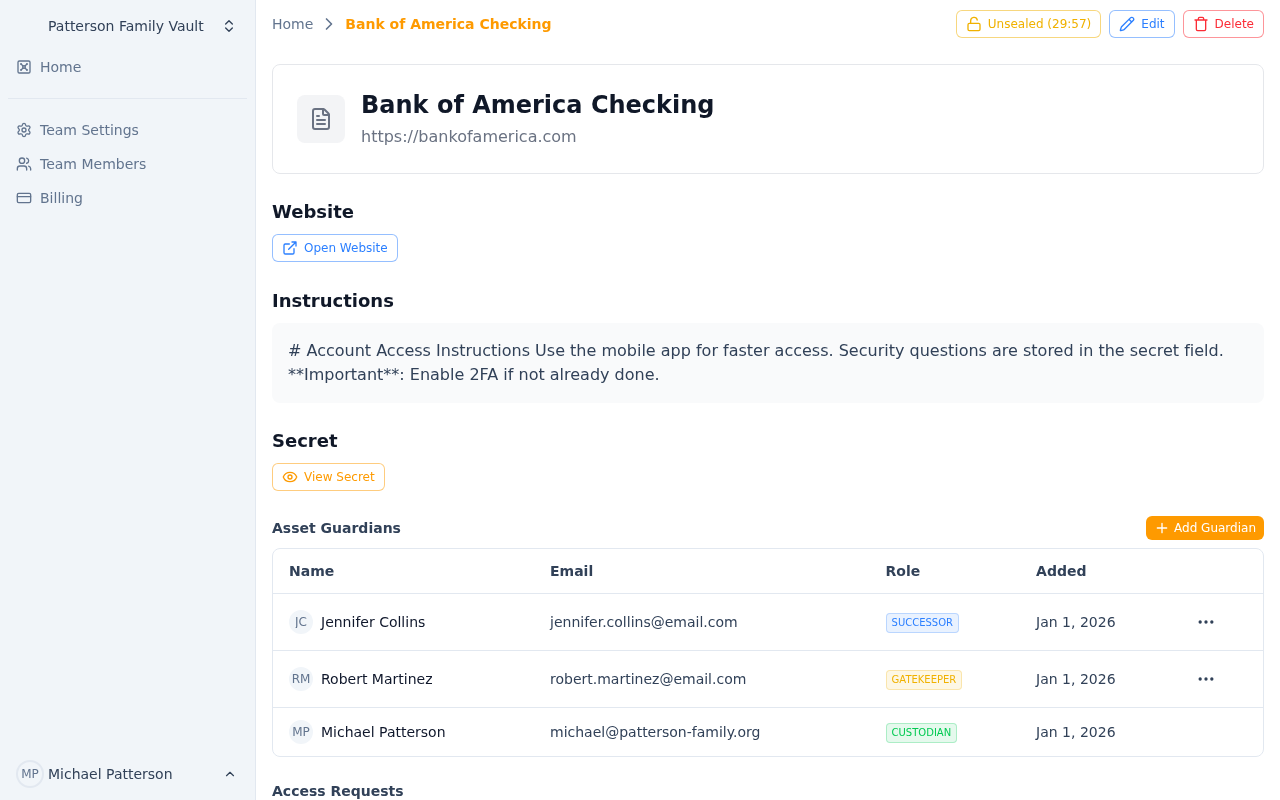 The guardian management panel showing Custodian, Gatekeepers, and Successors
To add a guardian to an asset:
- Navigate to your team's assets page
- Click on the asset you want to manage
- Scroll to the "Guardians" section
- Click "Add Guardian"
- Select the team member from the dropdown
- Choose their role (Gatekeeper or Successor)
- Click "Add"
The team member will receive an email notification that they've been added as a guardian, along with their role and responsibilities.
Important Notes:
- You can only add team members who are already part of your team
- A person can only have one role per asset
- Adding guardians is instant and requires no approval
- Guardians cannot see the encrypted secret until they have proper access
Removing Guardians
Removing a Gatekeeper
Custodians can remove Gatekeepers instantly without any approval:
- Navigate to the asset's guardian list
- Find the Gatekeeper you want to remove
- Click the "Remove" button
- Confirm the removal
The Gatekeeper will receive an email notification that they've been removed.
Removing a Successor
Removing a Successor requires a special approval workflow to prevent unauthorized removal of important disaster recovery contacts:
If No Other Successors Exist: The removal is instant, just like removing a Gatekeeper.
If Other Successors Exist: An approval request is created:
- Navigate to the asset's guardian list
- Find the Successor you want to remove
- Click "Remove"
- A removal request is created and all other Successors are notified via email
- Any one Successor can approve or deny the request
- If approved, the Successor is removed immediately
- If denied, the removal request is cancelled
- Requests expire automatically after 7 days if not acted upon
Why This Workflow?
This approval process ensures that:
- No single person can remove all disaster recovery contacts
- Successors are aware of changes to the guardian list
- There's a paper trail of all guardian changes
Viewing Your Guardian Assignments
To see which assets you're a guardian for:
- You'll receive email notifications when added to or removed from assets
- On the team dashboard, you can see all assets where you have any guardian role
- Assets where you're a Custodian show your full ownership
- Assets where you're a Gatekeeper or Successor show your limited access status
Email Notifications
You'll receive email notifications for:
- Added as Guardian: When you're assigned to an asset as a Gatekeeper or Successor
- Removed as Guardian: When you're removed from an asset
- Removal Request: (Successors only) When a Custodian wants to remove another Successor
- Removal Approved/Denied: When a Successor removal request is resolved
- Access Request Created: When a Successor requests access to an asset you're guarding
- Access Request Approved: When an access request you're involved with is approved
- Access Request Denied: When an access request is denied
- Access Request Auto-Approved: When a time-delay request expires without denial
- Secret Accessed: (Custodians only) When someone views the encrypted secret of your asset
Best Practices
For Custodians
- Choose Gatekeepers Wisely: Select people who should be notified of access attempts but don't need the actual credentials
- Select Appropriate Successors: Choose team members who would genuinely need access in an emergency
- Review Regularly: Periodically review your guardian lists and remove people who no longer need access
- Document Instructions: Use the asset's "Instructions" field to provide context about when access is appropriate
- Monitor Access: Pay attention to secret access notifications to detect unauthorized use
For Gatekeepers
- Stay Vigilant: Review access request notifications carefully
- Ask Questions: If an access request seems unusual, contact the requester or Custodian
- Deny Suspicious Requests: Use your time-delay denial power if something feels wrong
- Keep Contact Info Updated: Ensure your email is current so you receive notifications
For Successors
- Only Request When Needed: Access requests should only be made during genuine emergencies
- Communicate: Inform the Custodian and team when you need access
- Follow Instructions: Read the asset's instructions before requesting access
- Review Removal Requests: Take Successor removal approvals seriously - they affect your team's disaster recovery capability
- Help Other Successors: Approve legitimate access requests from fellow Successors promptly
Common Scenarios
Scenario 1: Setting Up Emergency Access for Domain Credentials
Goal: Ensure your team can access domain registrar credentials if you're unavailable.
Setup:
- Create an asset with your domain registrar credentials
- Add your IT manager as a Gatekeeper (they'll monitor requests but don't need credentials)
- Add 2-3 senior team members as Successors (they can request access in emergencies)
- Document when access is appropriate in the Instructions field
Scenario 2: Company SSL Certificate Password
Goal: Critical certificates need to be renewed, but only specific people should access them.
Setup:
- Create an asset with the SSL certificate and password
- Add your security team lead as a Gatekeeper
- Add your DevOps engineers as Successors
- Use time-delay approval for access requests (gives Gatekeeper time to verify)
Scenario 3: Executive Access to Company Accounts
Goal: CEO needs to ensure CFO and COO can access critical accounts if unavailable.
Setup:
- CEO creates assets for each critical account
- CFO and COO are added as Successors
- Company attorney added as Gatekeeper (oversight without access)
- Use DNS verification for high-security accounts (proves organizational control)
Frequently Asked Questions
Q: Can I have multiple Custodians on one asset? A: No, each asset has exactly one Custodian, initially the person who created it. The Custodian or the team owner can transfer the role to another team member.
Q: What happens if the Custodian leaves the company? A: Ideally the Custodian transfers their assets before leaving, which re-encrypts them for the new Custodian. The team owner can also transfer an asset, but only to someone who can already decrypt it, such as an enrolled Successor, because the server cannot decrypt anything. Plan for this by assigning multiple Successors to critical assets.
Q: Can a Gatekeeper become a Successor? A: Not simultaneously. You'd need to remove them as a Gatekeeper first, then add them as a Successor.
Q: How long do removal requests last? A: Successor removal requests expire after 7 days if not approved or denied.
Q: Can I remove all Successors from an asset? A: Yes, but each removal (after the first) requires approval from remaining Successors. The last Successor can be removed instantly.
Q: What if no one approves a Successor's access request? A: Access requests don't expire automatically. Successors should communicate with Custodians and other guardians to get timely responses. Time-delay requests auto-approve if not denied.
Q: Can I see a history of who accessed an asset's secret? A: Custodians receive email notifications each time someone accesses their asset's secret, including timestamp, location, and IP address.
Related Documentation
- Access Requests - How Successors request and gain access to assets
- Security Model - Understanding the encryption and security architecture